ANIMEMON Controls by Platform
Movement, interact habits, and turn-based battle UI tips for Desktop, Console, Mobile, and Tablet.
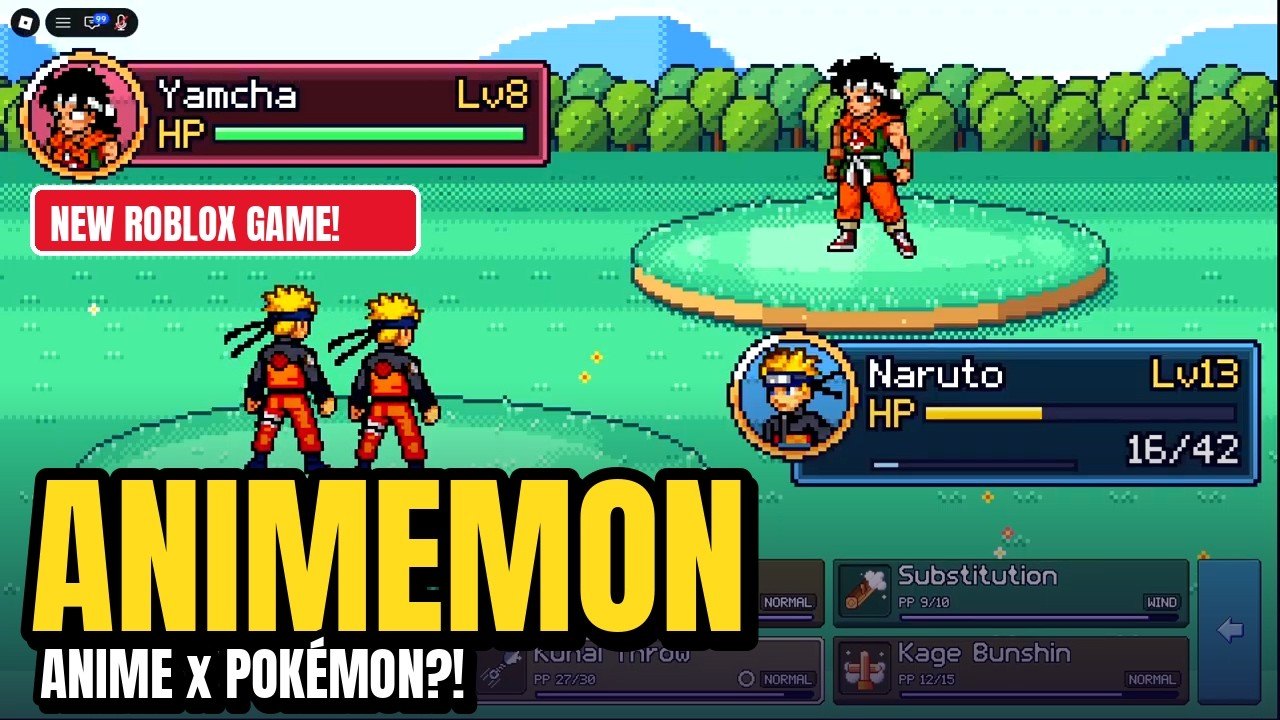
Mastering ANIMEMON controls is half the fight. Rendroide Games’ Roblox turn-based RPG and creature collector runs on Desktop, Console, Mobile, and Tablet with up to 15 players per server. The overworld still feels like classic Roblox movement, but battles ask for deliberate menu choices. This guide covers typical WASD and jump patterns, interact habits, and how to keep the battle UI readable on every device so you do not waste a capture turn.
If you have not finished onboarding yet, pair this page with Getting Started. When you are ready for combat theory, continue to How to Battle and How to Capture Animemons.
Overworld movement (Roblox-familiar defaults)
Most Roblox experiences share a familiar locomotion layer, and ANIMEMON fits that expectation:
- Desktop: W A S D (or arrow keys) move your avatar; Space jumps; mouse look or right-stick style camera orbits depending on your Roblox camera mode.
- Console: Left stick walks; face buttons handle jump and confirm; bumpers or the touchpad equivalent often open menus once the HUD unlocks.
- Mobile / Tablet: Virtual joystick on the left, jump and action buttons on the right; pinch or drag for camera when the experience allows it.
Spend the first minutes after join confirming which button opens Inventory, Party, and Settings. Mis-mapped muscle memory from action Roblox titles is the number-one cause of accidental attacks during a catch window.
Interact, talk, and world prompts
Creature collectors lean on proximity prompts: NPCs, heal stations, doors, and pickup sparkles. Typical safe habits:
- Walk close until the interact label appears.
- Press the interact / confirm control once — do not spam.
- Read dialogue that explains turn order or capture rules; early tips are denser in a November 2026 launch title.
- Back away from crowded prompts in busy 15-player servers so you do not steal someone else’s NPC line by accident.
If a prompt refuses to fire, check latency and whether another UI modal is open. Closing the bag or party panel often restores world interact.
Turn-based battle UI — shared ideas across platforms
When a wild Animemon or trainer fight starts, movement locks and the battle chrome takes focus. Expect some mix of:
- Move list — attacks and utility options for the active Animemon
- Switch / Party — swap to a better matchup or a safer chip attacker
- Bag / Items — balls, heals, and battle tools
- Run / Back — when the fight allows escape
Your job is accuracy under pressure. A fat-fingered “Fight” when you meant “Bag” can faint the creature you wanted. Slow down for one breath before every critical confirm.
Desktop battle tips
- Prefer mouse clicks on labeled buttons when menus are dense.
- Hover for tooltips if the build exposes them.
- Keep the cursor away from the edge of the window so accidental OS clicks do not steal focus mid-turn.
- Lower graphics briefly if animations stutter and delay your input.
Console battle tips
- Memorize which face button confirms versus cancels before a rare spawn.
- Learn the exact path: Fight → move slot, or Bag → ball category.
- Avoid resting your thumbs on sticks during menu navigation; stick drift can highlight the wrong option.
- Sit close enough to read HP bars; TV distance causes late switches.
Mobile and tablet battle tips
- Increase UI scale in Roblox or in-game settings when available.
- Use two thumbs only when comfortable; many trainers prefer one-handed deliberate taps for capture turns.
- Disable aggressive notification banners during hunts so an OS popup does not eat a turn.
- Landscape orientation usually gives more room for move names than portrait.
- On tablets, rest the device on a stand for legendary attempts — arm fatigue causes mis-taps.
Touch-friendly advice in one line: bigger targets, fewer rushed taps, heal before you hunt.
Camera, performance, and readability
Turn-based games punish late inputs more than twitch titles. If the battle UI lags:
- Drop Roblox graphics quality one or two notches.
- Close background apps on Mobile.
- Avoid playing on unstable public Wi-Fi during prestige catches.
- Rejoin if the HUD desyncs after a long session — early builds after the 7 November 2026 launch can still ship QoL fixes frequently (Updates, including the November 29 2026 note).
Practice drills that build muscle memory
Five-minute overworld drill: Walk a short loop, jump once, open Party, close it, interact with a safe NPC, then reopen Inventory. Repeat until the path is automatic.
Ten-minute battle drill: Fight commons only. Alternate deliberately between Fight, Switch, and Bag so each path feels equal. Do not throw premium balls here — save those for real hunts described in the capture guide.
Capture rehearsal: Intentionally chip a common, open Bag, highlight a basic ball, cancel once without throwing, then throw on the next turn. Cancel practice prevents panic confirms later.
Linking controls to the rest of the loop
Controls are useless without intent:
- Capture timing and HP windows → How to Capture Animemons
- Switching, status, and trainer pacing → How to Battle
- Early checklist and HUD orientation → Getting Started
- Role coverage once inputs feel clean → Team Building
Promo gifts will not fix clumsy menus. The Codes Hub still lists no public working codes as of the November 29 2026 check, and the Scripts Hub still reports no verified ANIMEMON-specific scripts. Honest progress means cleaner inputs, not shady executors that claim auto-tap macros.
Accessibility and comfort
- Take breaks every 30–45 minutes; menu eyestrain causes wrong confirms.
- If color-coded type icons are hard to parse, rely on written type names when the UI shows them.
- Remap Roblox camera sensitivity so small flicks do not spin you away from a prompt.
- On shared devices, re-check touch positions after another player changes UI scale.
Common control mistakes
- Spamming jump into tall grass and skipping the first read of an encounter prompt
- Opening chat instead of Bag on console because the buttons sit close in muscle memory from other games
- Holding a movement stick while confirming a battle option (highlight drifts)
- Playing hunts one-handed on a phone while walking in real life — save prestige attempts for seated sessions
- Assuming Mobile and Desktop bag layouts are identical after a patch; always re-orient for 30 seconds after updates
After you feel fluent
When movement, interact, and battle confirms feel boringly reliable, you are ready for deeper systems: grinding loops in the Grinding Guide, evolution planning in How to Evolve and Train, and roster roles on the Players Hub. Bookmark the Guides Hub so new walkthroughs stay one tap away.
Clean controls turn ANIMEMON from a fumbling first hour into a calm collector fantasy. Learn your device, respect the battle UI, and let every confirm be intentional.
Frequently Asked Questions
Quick answers to the most common ANIMEMON questions.
What are the basic ANIMEMON movement controls on PC?
Expect standard Roblox locomotion: WASD or arrows to move, Space to jump, and mouse camera look. Confirm Inventory, Party, and Settings bindings in your first minutes.
How do I avoid mis-taps on Mobile during captures?
Raise UI scale if available, play seated in landscape, and pause before Bag confirms. Practice cancel-then-throw drills on commons first.
Do console players need different battle habits?
Yes. Memorize confirm versus cancel face buttons and the Fight/Bag navigation path before rare hunts so stick drift or haste does not pick the wrong option.
Should I use scripts to auto-press battle buttons?
No. There are still no verified ANIMEMON-specific scripts on major lists, and unauthorized clients risk your account. Train manual inputs instead.
What should I read after the controls guide?
Continue with How to Battle and How to Capture Animemons, or return to Getting Started if you still need the first-session checklist.